Control your Mac from your iPhone.
MacGo is a remote control for your own Mac: see its screen on iPhone or iPad, use the glass as a mouse, and type with a real modifier row. No account, no relay.
iPhone & iPad app
From the App Store. Requires iOS / iPadOS 26 or later.
Mac companion out now · iPhone app in review See release status
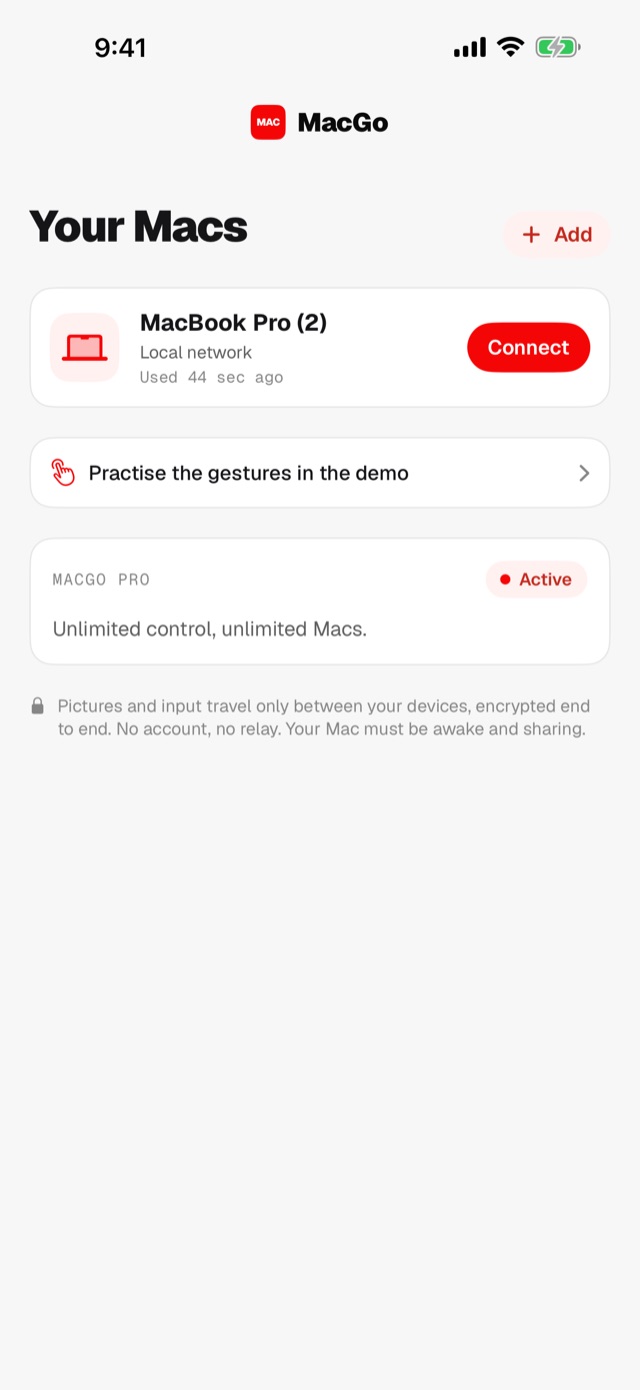
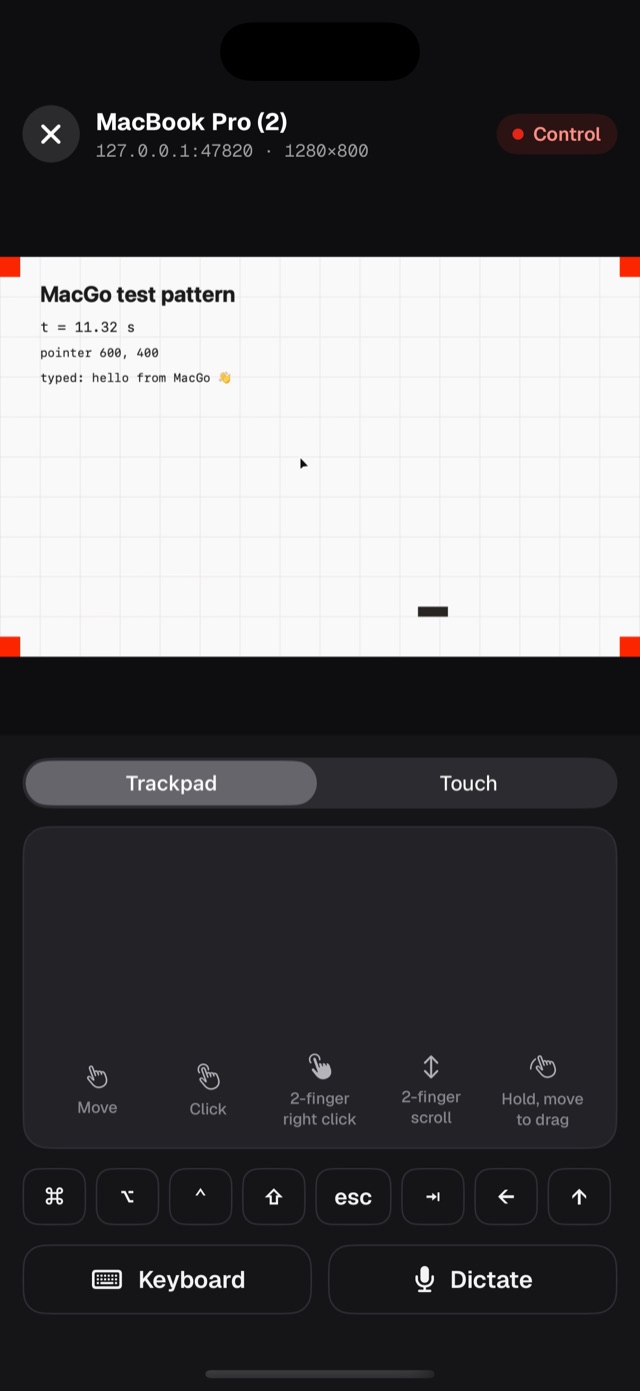
A trackpad that already knows your Mac.
The gestures you use on a MacBook work on glass. Switch to direct touch when you would rather tap exactly where you look.
- 1 fingerMove the pointer
- TapClick
- Double-tapDouble-click
- 2-finger tapRight click
- 2 fingersScroll
- Hold, then moveDrag
From install to first frame.
Pair on the same network
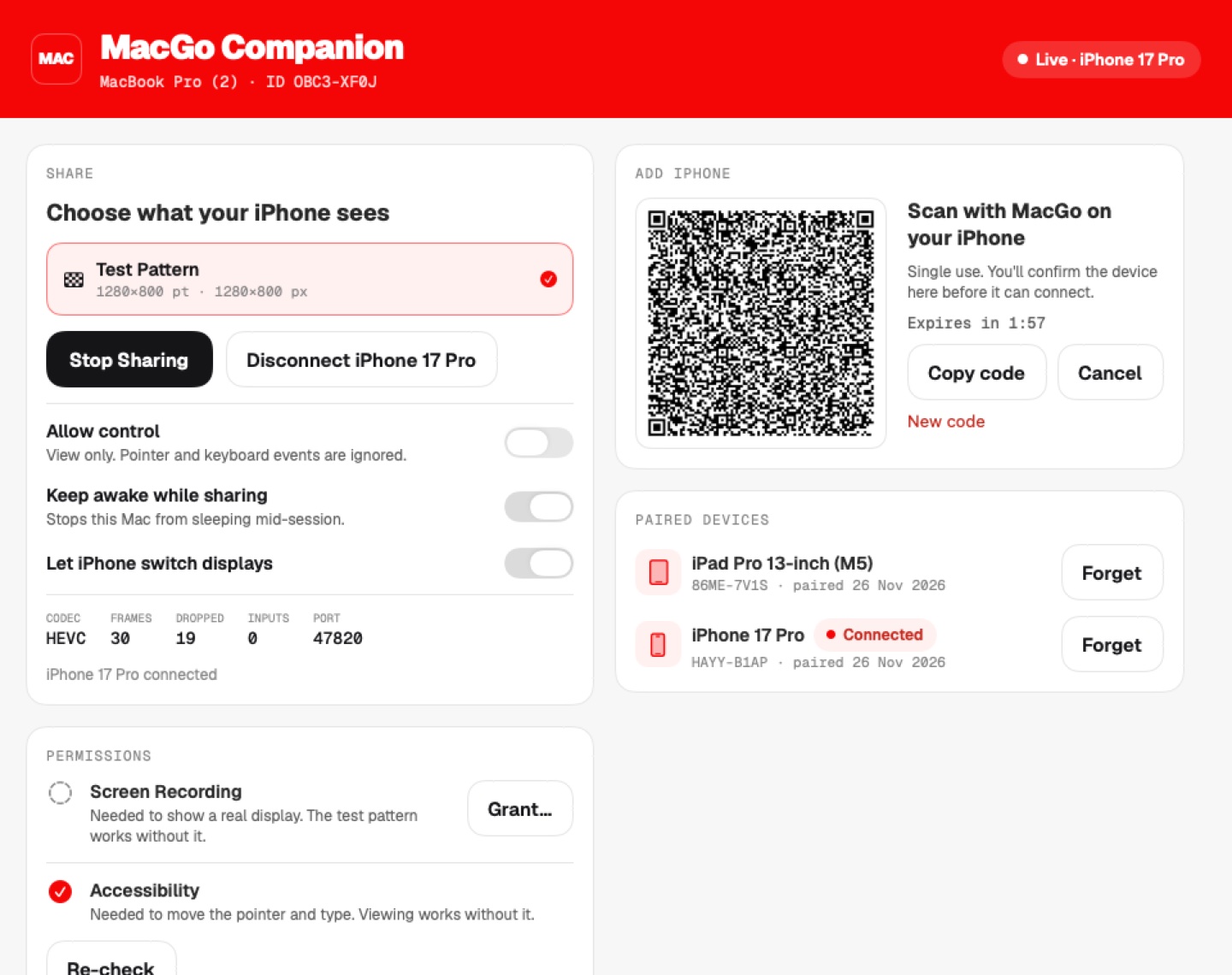
Grant Screen Recording on the Mac, then scan its QR code or paste the invitation code on your iPhone. You approve the phone on the Mac once.
First connection guideTake control
Turn on Allow control on the Mac. Use the glass as a trackpad or tap directly, type with the modifier row, and preview dictation before it is sent.
Controls guideReach it from anywhere
Optional: add your own Tailscale network address so MacGo reaches your Mac away from home, still with no relay in between.
Private network guide
Want the whole walkthrough on one page? Read how to control your Mac from your iPhone.
Free to view. Pro to drive.
MacGo Free
Free
Watch your Mac as long as you like, and take control for five minutes a day.
- View your Mac’s screen — viewing is unlimited
- 1 saved Mac
- 5 minutes of control per day, reset at midnight
- Recommended
MacGo Pro Lifetime
$7.99 one-time
Regular price
Launch price — limited time$14.99(was $14.99)Everything in Pro, forever. Pay once.
- Removes the 5-minute daily control limit
- Unlimited Macs
- Dictation
- The keyboard dock
MacGo for Mac: Free. The Mac companion is always free. It shares your screen with your own paired devices.
Prices shown in USD; your local App Store price may differ. You buy Pro inside the iPhone and iPad app, with your Apple Account. The app is in App Store review, so Pro goes on sale when it is live.
Frequently asked
Can I control my Mac from my iPhone?
Yes. Install MacGo on your iPhone or iPad and the free MacGo companion on your Mac, pair them once, and you can see your Mac’s screen and move the pointer, click, scroll and type from your phone. The Mac companion is available now, and the iPhone app is in App Store review.
How do I control my Mac from my iPhone?
Open the MacGo companion on your Mac and grant Screen Recording, plus Accessibility if you want to send input. Choose Start Sharing, scan the QR code on the Mac with MacGo on your iPhone, and approve the request on the Mac. Your Mac’s screen appears on the phone and you control it with trackpad gestures and the keyboard.
Can I control my Mac remotely from my iPhone, away from home?
Yes, through your own Tailscale network. Install Tailscale on both devices, sign in to the same tailnet, and add your Mac’s Tailscale address as a route in MacGo. There is no MacGo relay or account in between. The Mac has to stay awake and signed in while you are away.
Can I use my iPhone as a mouse or trackpad for my Mac?
Yes. In trackpad mode the iPhone screen works like a MacBook trackpad: move one finger to move the pointer, tap to click, double-tap to double-click, tap with two fingers to right-click, scroll with two fingers, and touch and hold, then move, to drag. Direct touch mode clicks exactly where you tap instead.
Does it work with Mac mini?
Yes. MacGo works with any Mac on macOS 26 or later, including Mac mini, iMac, Mac Studio and MacBook models, with Apple silicon or Intel chips. Like any Mac, a Mac mini must be awake with you signed in. If it drives more than one display, you can switch between them from your phone.
Can I control my iPhone from my Mac?
No. MacGo works in one direction: your iPhone or iPad views and controls your Mac. To use your iPhone from your Mac, Apple’s iPhone Mirroring, built into recent versions of macOS and iOS, is the feature to use.
Is MacGo free?
Viewing is free and unlimited on one Mac, with 5 minutes of control per day, counted as active control time and reset at midnight. MacGo Pro removes the 5-minute daily control limit and adds unlimited Macs, dictation and the keyboard dock, for $7.99 once at the launch price. The Mac companion is always free.
Does MacGo need an account or a cloud service?
No. There is no MacGo account, sign-up, or relay server. Your iPhone talks directly to your Mac over your local network, or over your own Tailscale network if you set one up.
Does it work when my Mac is asleep or at the login window?
No. The Mac must be awake, with you signed in and the MacGo companion running. MacGo does not wake a sleeping Mac or unlock a locked one. On a desktop Mac, set it to stay awake on power if you want to reach it later.
Can someone else on my Wi-Fi see my screen?
Only devices you have paired by scanning the QR code or pasting the invitation code shown on your Mac, and approved on the Mac. You can revoke any paired device from the companion at any time.
What is the difference between view-only and allow input?
View-only streams your screen and ignores all taps and keys. Allow input lets the paired device move the pointer, click and type, and needs the Accessibility permission on the Mac. You choose per session in the Mac companion.
How do I stop sharing right away?
Click Stop Sharing in the MacGo menu bar item on the Mac, or quit the companion. The session ends immediately on every connected device.
Does MacGo use my microphone?
Only while dictation is listening, which you start and stop yourself. Speech is turned into text on your iPhone using Apple’s on-device recognition, and you see the text before you tap Send.
Start with your Mac.
The free Mac companion is available to download now. The iPhone and iPad app is in App Store review and will be linked here when it is live.